Drawing Anchor Curves
Rounded and smooth curves are both considered anchor curves.
Drawing Curves
Drawing
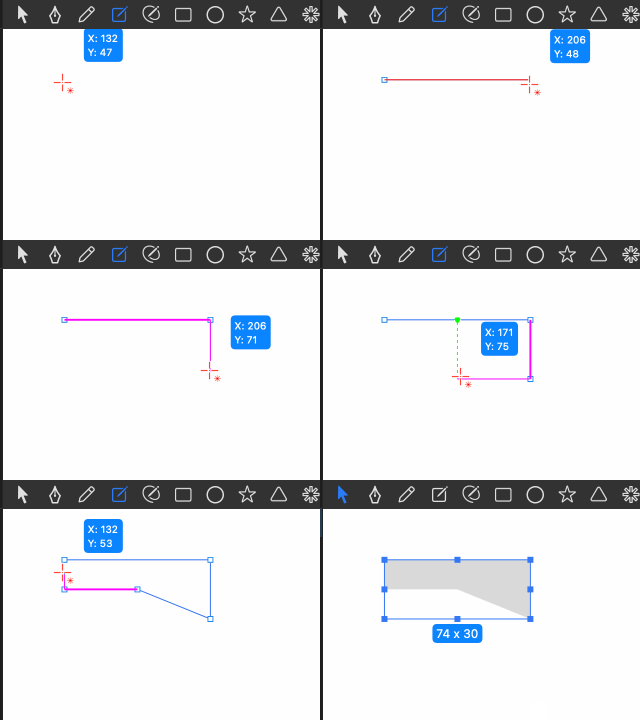
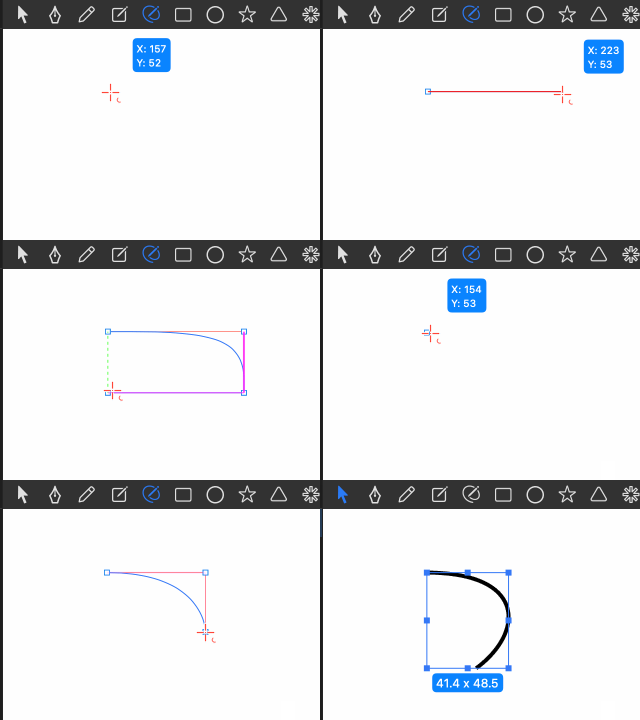
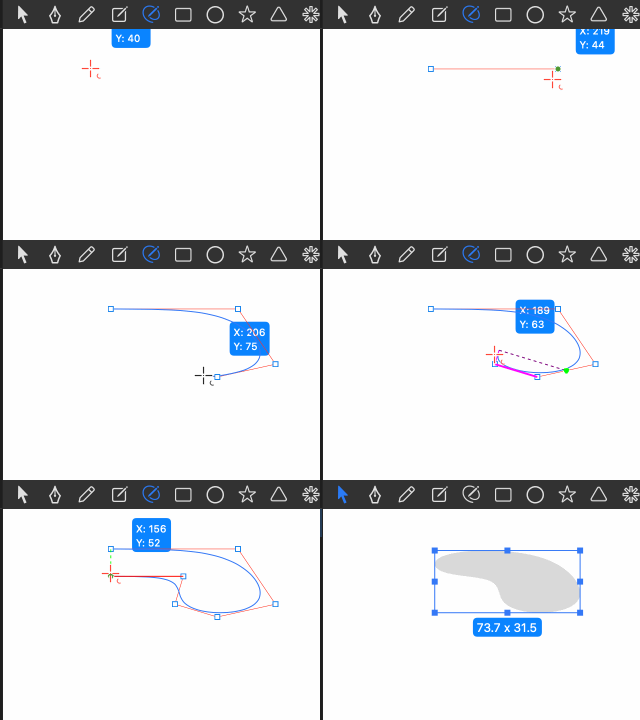
When drawing a smooth curve, the anchor points are set to smooth by default. Press the ⌘ key to switch to corner points, and the mouse cursor will display the corresponding hint.
Clicking on the first anchor point of the curve will close and finish the current drawing. Pressing the ⏎ key will also end the drawing process.
Smart Snapping
When switching to the anchor curve drawing tool, if the cursor appears red, it indicates that the smart snapping feature is enabled. Press the ⌥ key to toggle this feature on or off.
Smart snapping includes:
- Axial snapping
- Vertex alignment
- Curve angle matching
- Midpoint alignment
Forced Snapping
While using the anchor curve drawing tool, you can activate forced snapping using the following shortcuts:
- Hold C key: Enable curve snapping.
- Hold V key: Enable vertex snapping.
- Hold X key: Enable grid snapping.
Editing Curves
Double-click the shape on the canvas (or double-click the icon in the layer list) to enter shape editing mode. In this mode, you can perform overall curve operations, such as copying, deleting, mirroring, sorting, and changing shape modes.
Double-clicking the curve again will enter anchor editing mode. In this mode, you can select, move, rotate, scale, add, delete, or mirror anchor points.
Selecting Anchor Points
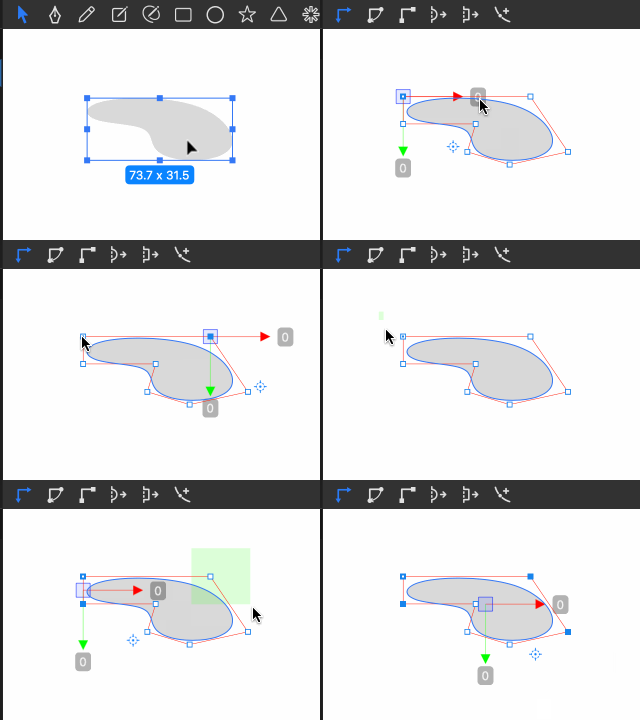
- Click an anchor point to select it.
- Hold the ⇧ key and click an anchor point to add it to the selection.
- Drag a selection box to select all anchor points within the area; hold the ⇧ key and drag to add anchor points to the selection.
- Dragging along an edge without selecting anchor points will select all anchor points on the curve.
Moving Anchor Points
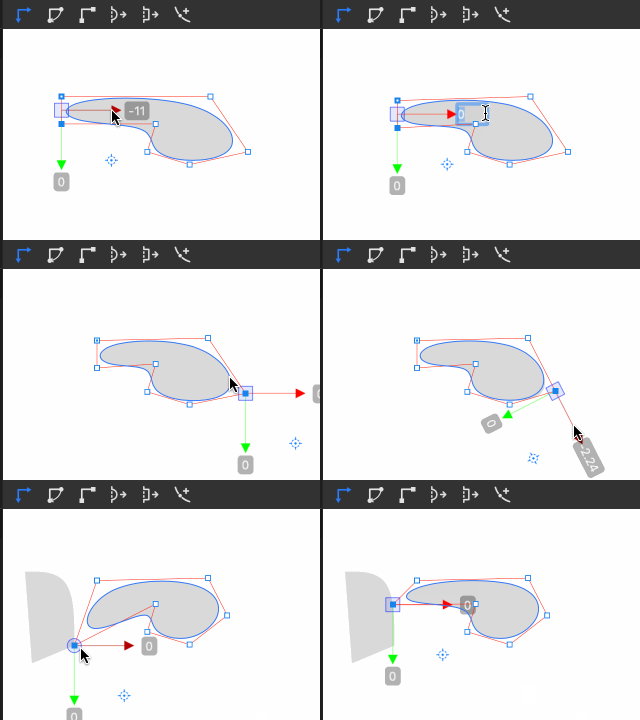
- Select anchor points and press the W key to switch to the anchor move tool. In this tool, you can:
- Drag the axis center to move anchor points freely.
- Input precise movement values to achieve accurate adjustments.
- Toggle between global and local coordinate systems by pressing the W key.
During movement:
- Hold C key to snap to nearby curves.
- Hold V key to snap to nearby vertices.
- Hold X key to snap to the grid.
Rotating Anchor Points
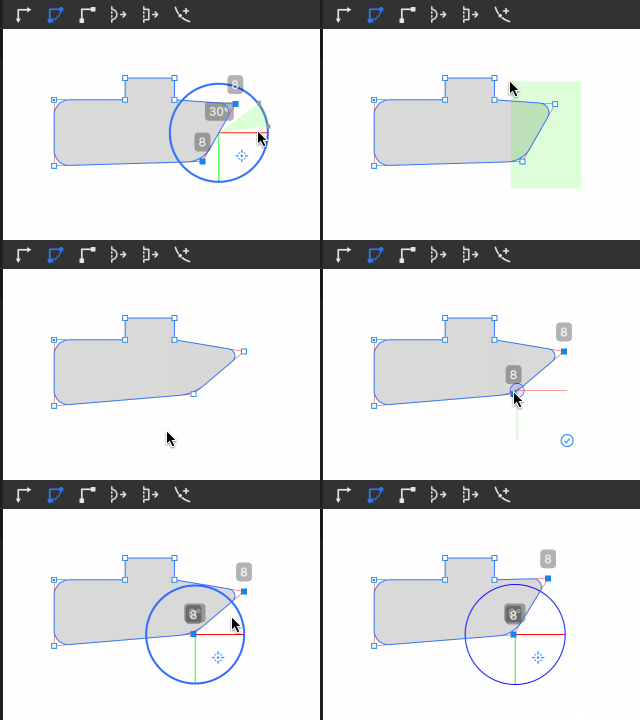
- Select anchor points and press the E key to switch to the anchor rotation tool. In this tool, you can:
- Drag to adjust the rotation of anchor points.
- Enter precise rotation angles for exact adjustments.
- Modify the blue rotation center point position to change the rotation pivot.
Press the E key to toggle between global and local coordinate systems.
Scaling Anchor Points
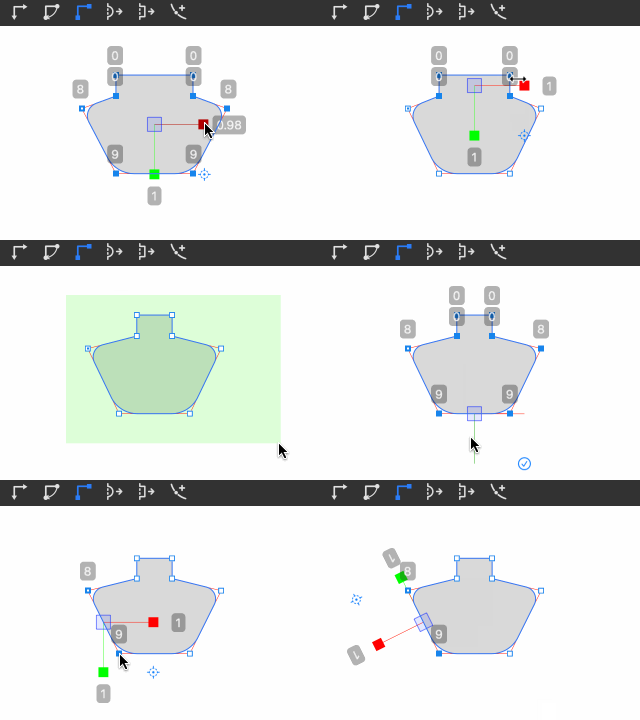
- Select anchor points and press the R key to switch to the anchor scaling tool. In this tool, you can:
- Drag handles on the axis to scale along specific directions.
- Drag the axis center to scale proportionally.
- Enter precise scaling values for exact adjustments.
Press the R key to toggle between global and local coordinate systems.
Adding Anchor Points
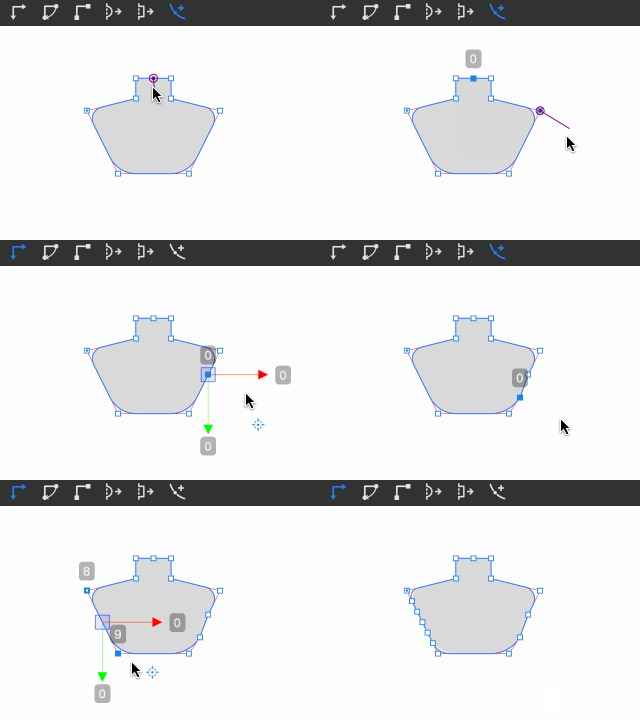
- In anchor editing mode, hold the ⌘ key to display the position of the new anchor point. Click the mouse to add the point, or drag the mouse to add and move the point simultaneously.
- If the target position is at the center of an edge or perpendicular to another vertex, the hint icon will change accordingly.
- Select two endpoints and press a number key (1-9) to evenly add the specified number of points along the line segment.
Deleting Anchor Points
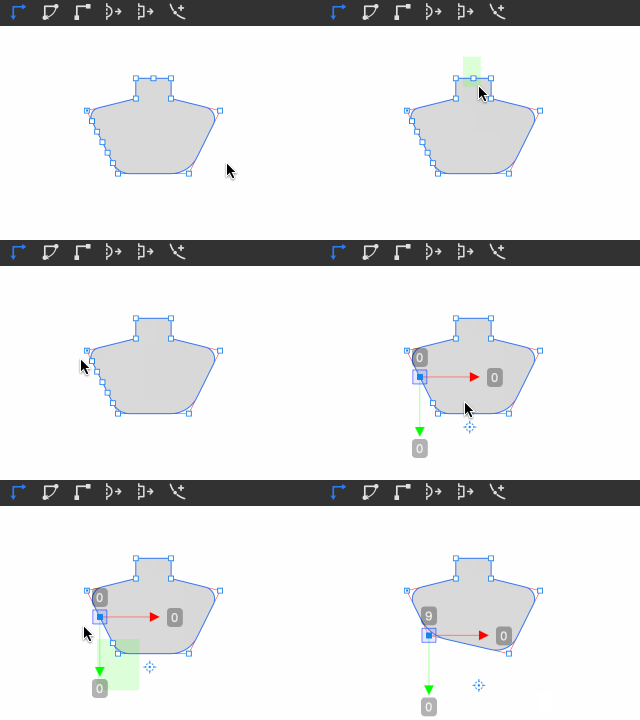
- Select anchor points and press the ⌫ key to delete them.
- If the selected points are continuous, press the X key to merge them into a single point.
Converting Anchor Point Types
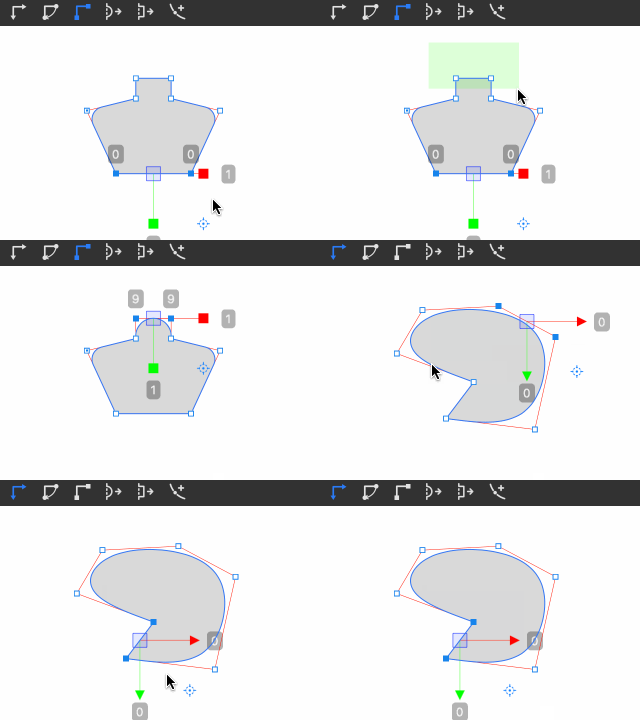
- Press C key: Convert the selected points to smooth anchor points.
- Press V key: Convert the selected points to corner points.
For rounded curves, you can also adjust the rounding value above the anchor point to modify the curve’s radius.
Precisely Setting Anchor Point Positions
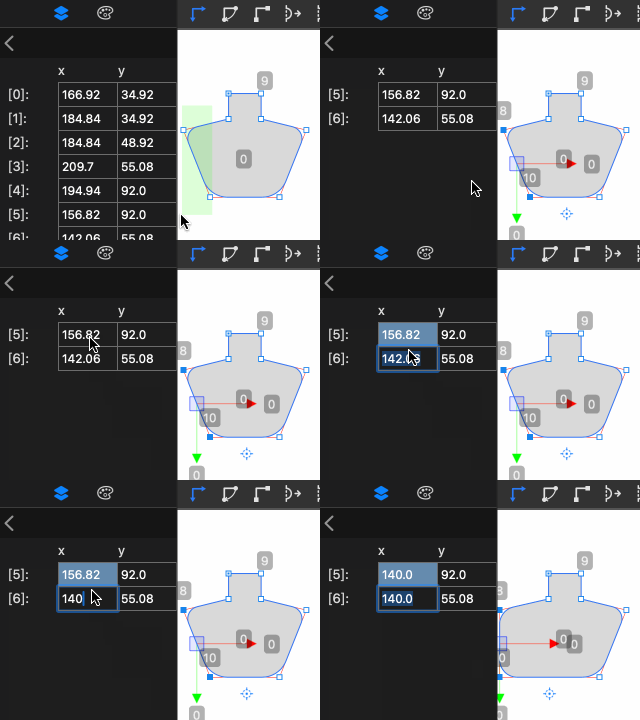
You can directly enter anchor point coordinates in the anchor point list on the left to adjust their positions precisely. You can also drag across multiple input fields to modify several points at once.
Mirroring Curves
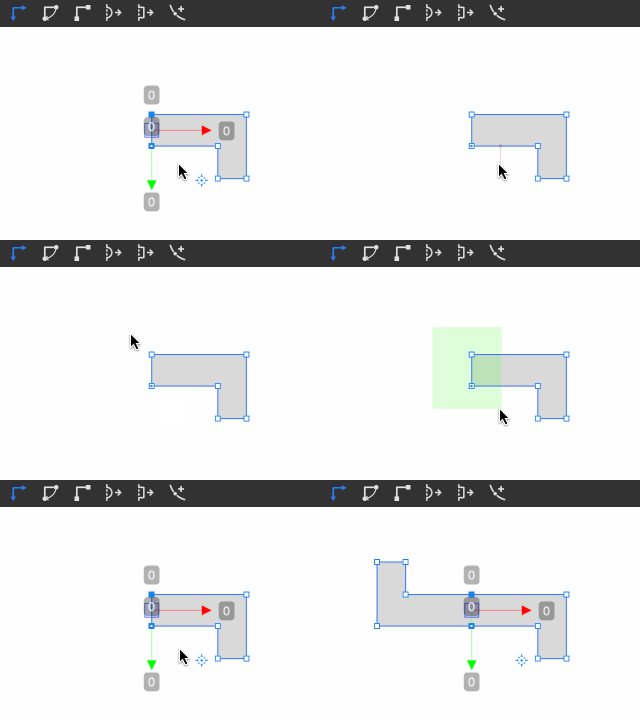
- Select two adjacent anchor points and press M key to create a symmetrical mirror along the edge.
- Press S key to rotate and mirror along the selected edge.
Extruding Edges
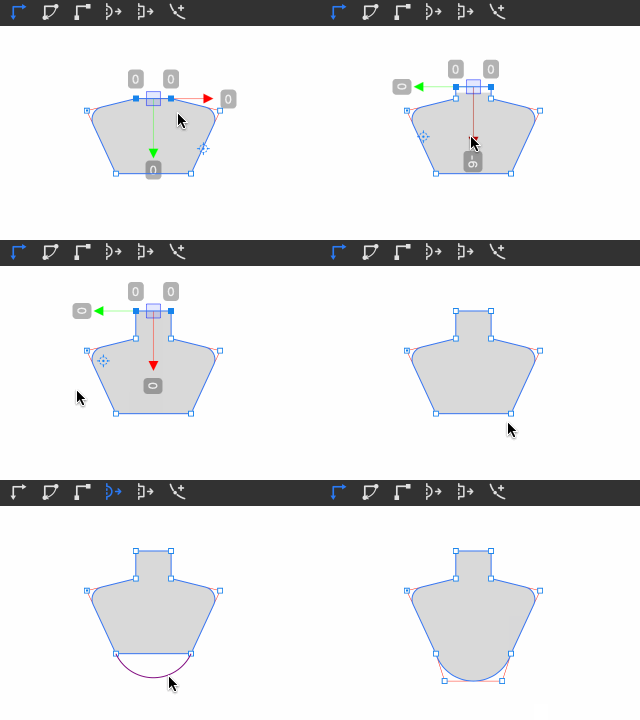
- Select two adjacent points, then click the extrude edge button or press T key to extrude the edge.
- Hold the ⌥ key, then drag the mouse to extrude an arc.
Opening/Closing Curves
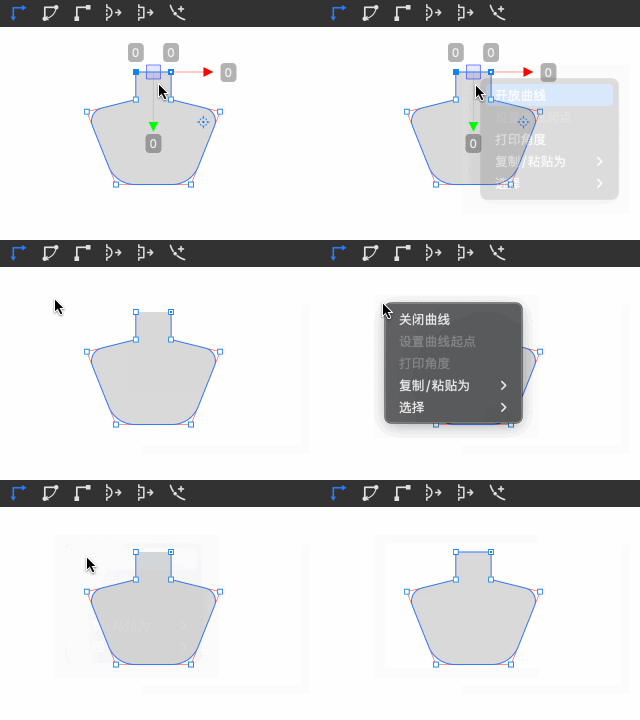
- For closed curves: Select two consecutive anchor points, right-click, and choose the "Open Curve" menu to open the curve.
- For open curves: Right-click and choose the "Close Curve" menu to close the curve.
Setting Curve Starting Points
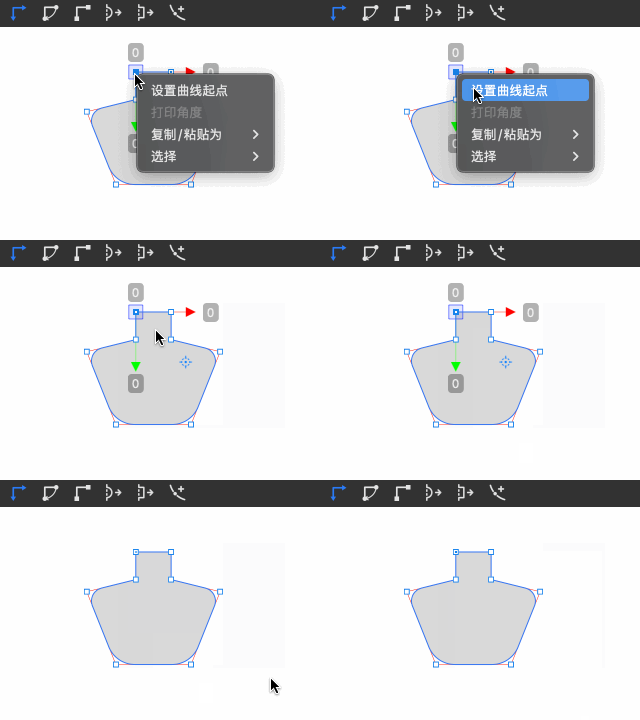
Select any anchor point, right-click, and choose the "Set as starting point" menu to set it as the starting point of the curve.